
Getting logs off a host and into your SIEM should be the easy part. In practice, it often means installing a third-party shipper, writing a local config file, and then repeating that work on every host you add. Graylog 7.2 introduces a different approach: Graylog Collector, a native log shipper that you install once and then manage entirely from the Graylog interface.
Graylog Collector ships in 7.2 as a preview feature, released for evaluation and feedback. Its design and behavior could change significantly in future releases, so it is a great time to try it in a lab and tell us what you think.
In this Graylog Labs post, we cover what Graylog Collector is and how it works under the hood, then walk through installing it on Linux, Windows, and macOS.
What Is Graylog Collector?
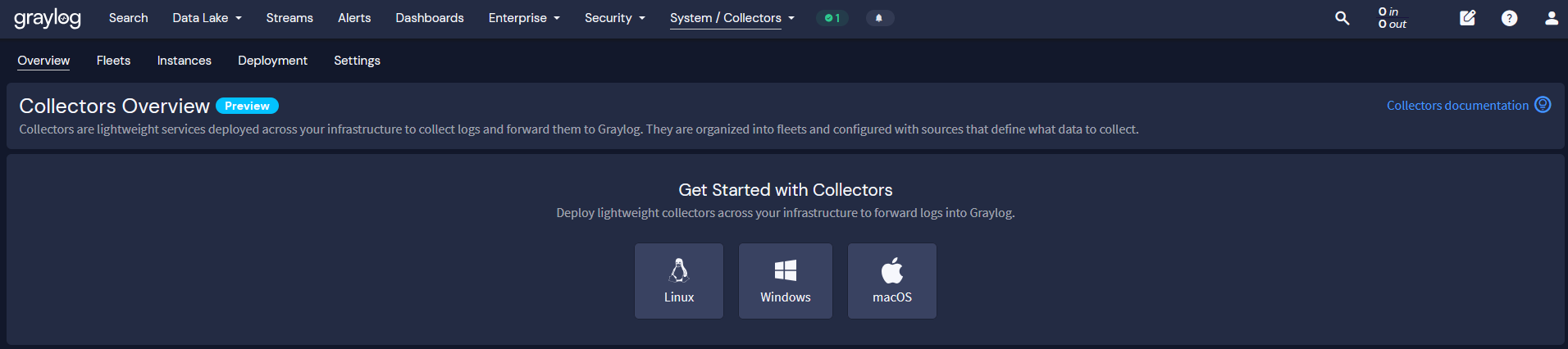
Graylog Collector is a log shipper that reads logs from a host and sends them to Graylog. You configure it from the Graylog interface, so once a collector is enrolled, the host needs no local configuration at all.
Each collector has two jobs:
- Collect and send log data. You define what to read by adding collector sources in Graylog. A source can read from files, the systemd journal, the Windows Event Log, or the macOS unified logging system.
- Report on itself. Each collector reports its health, host metadata, and the configuration it has applied. It also sends its own diagnostic logs to Graylog, so you can troubleshoot a failing collector without logging into the host.
Graylog Collector vs. Graylog Sidecar
If you already use Graylog Sidecar, note that the two are separate features. They do not share configuration, enrollment, or management. Sidecar manages third-party shippers such as Filebeat and NXLog that you install alongside it. Graylog Collector collects and sends log data on its own, with no third-party shipper required.
How Graylog Collector Connects to Graylog
Every collector keeps two separate HTTPS connections to Graylog: a control channel built on the Open Agent Management Protocol (OpAMP), and a data channel built on the OpenTelemetry Protocol (OTLP).
| Connection | Protocol | Purpose | Destination |
| Control channel | OpAMP | Configuration, certificates, and health reporting | The Graylog server URL given during enrollment |
| Data channel | OTLP | The collected log data | The ingest endpoint set in System > Collectors > Settings |
These two connections usually go to different addresses and ports. The control channel goes to the Graylog server, while the data channel goes to wherever the collector ingest input is reachable, typically a load balancer or the Graylog server itself. Every collector host must be able to reach both. All communication is authenticated with certificates issued through managed private-key infrastructure.
Your Existing Processing Still Applies
Once collector messages arrive, Graylog treats them like messages from any other input. They pass through the message processors configured in System > Configurations > Message Processors, including Illuminate for normalization and enrichment and the Pipeline Processor for your own rules. No collector-specific setup is needed, so your existing streams, pipelines, and Illuminate content work on collector data right away.
Fleets, Sources, and Instances
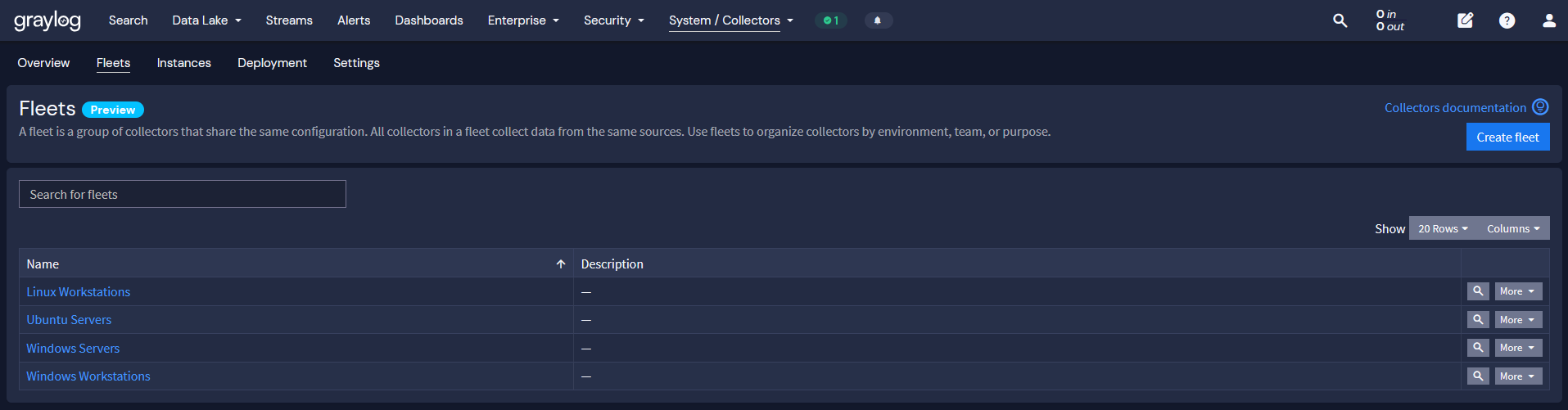
Graylog Collector organizes collectors into fleets. A fleet is a group of collectors that share one configuration, and that configuration is a set of sources defining what to collect.
| Concept | What it is |
| Instance | A single running collector, identified by an instance_uid assigned at enrollment. Each instance belongs to exactly one fleet. |
| Fleet | One or more instances sharing a configuration, usually organized by environment, team, or purpose. A fleet owns its sources. |
| Source | A definition of what to collect: a type, a name, and type-specific options such as file paths or journald priority. A source belongs to one fleet and cannot be shared. |
| Enrollment token | A signed token scoped to one fleet. A collector presents it once to obtain its client certificate, so it keeps working after the token expires. |
Plan Fleets Around What, Not Where
Group hosts by what they should collect, not by where they live. For example, web servers in three data centers that all collect the same nginx logs belong in one fleet, not one fleet per data center.
Configuration Changes Without Restarts
When you add or change a source, Graylog compiles the fleet’s sources into a collector configuration and pushes it to every enrolled instance over the control channel. Each instance applies it and reports the result back, with no restart required. Instances that have not confirmed the current configuration are flagged in the instance list.
Mixed Operating System Fleets
A fleet can mix operating systems. Graylog builds each instance’s configuration for the OS it reported and leaves out any source type that host does not support. A fleet with a journald source, a Windows Event Log source, and a file source sends journald and file sources to Linux hosts, and Event Log and file sources to Windows hosts.
Status and Health Are Not the Same Thing
Graylog tracks a collector’s status and its health separately, and knowing the difference saves troubleshooting time.
Status tells you whether the collector is reporting in, measured against the offline threshold you set in the collector settings. A collector is Online if it reported within that threshold and Offline if it has not. Offline only means the collector stopped reporting; it does not tell you whether the service stopped, the host is powered off, or the network path is broken.
Health is reported by the collector itself. An unhealthy instance reports the error behind it and when the state last changed. A collector can be online and unhealthy at the same time, because it is still reporting while part of its configuration is failing.
One more point worth remembering: an online, healthy collector does not prove that log data is arriving. The control and data channels are separate connections to different addresses, so a collector can be fully managed while its data goes nowhere. Always confirm that messages are actually reaching Graylog.
Before You Install
Graylog Collector runs as a service on each host you want to collect from. Before you start, make sure your environment meets these requirements.
On the Graylog side:
- Graylog 7.2 or later with HTTPS enabled
- A Graylog administrator account
On each collector host:
- Administrator access (sudo on Linux and macOS, administrator rights on Windows)
- At least 1 CPU core, 128 MB of RAM, and 128 MB of free disk space
- Outbound HTTPS access to both the Graylog server URL and the ingest endpoint
- If Graylog uses a private CA or a self-signed certificate, the CA certificate installed in the host’s system trust store
Supported Platforms
| Platform | Architecture | Versions |
| RHEL and derivatives | amd64, arm64 | 8, 9, 10 |
| Ubuntu | amd64, arm64 | 22.04, 24.04 |
| Debian | amd64, arm64 | 12, 13 |
| SUSE Linux Enterprise Server | amd64, arm64 | 15 |
| Amazon Linux | amd64, arm64 | 2023 |
| Windows Server | amd64 | 2016, 2019, 2022, 2025 |
| Windows | amd64 | 10, 11 |
| macOS | Intel, Apple silicon | 13.0 and later |
Docker and Kubernetes are not supported deployment targets.
Installing Graylog Collector
Installation can be done via the graylog interface or packaged installer. For installing through the graylog interface, Installation comes down to three steps: initialize the collector infrastructure once, generate an enrollment token for a fleet, and run the install command on each host.
Step 1: Initialize Collector Infrastructure
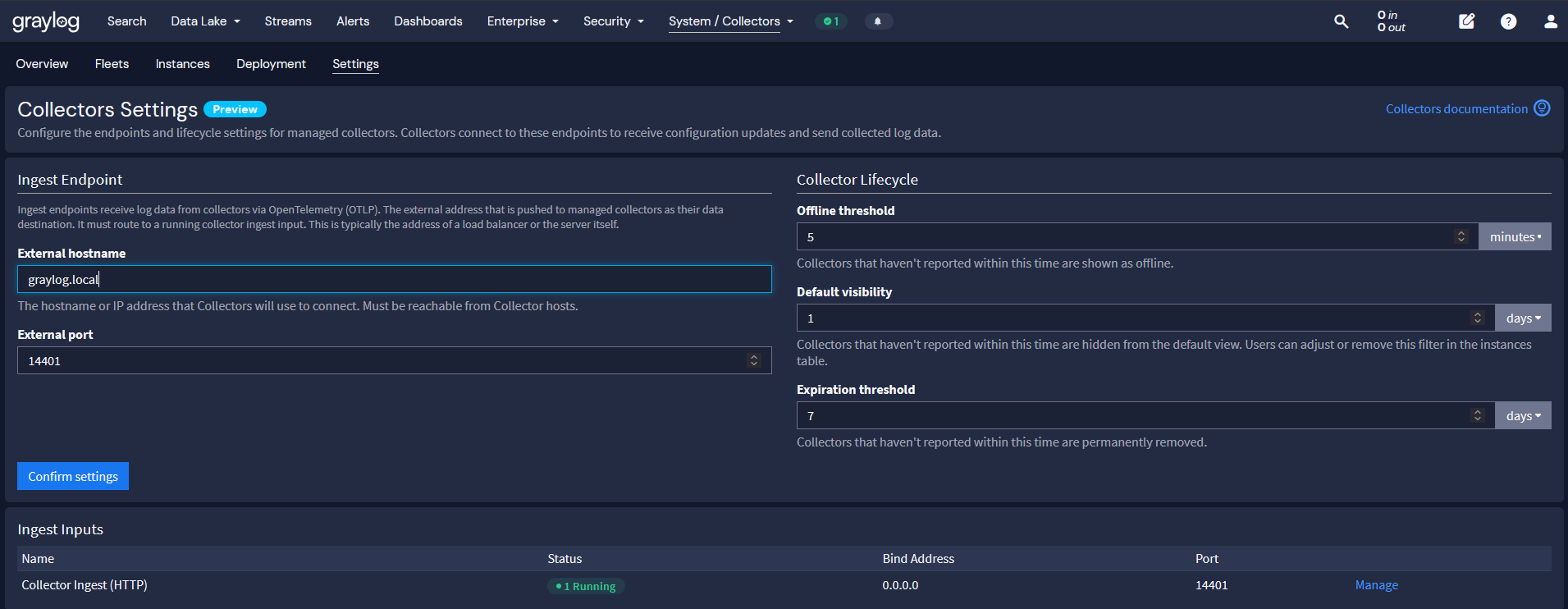
This is a one-time step per cluster. Saving the ingest endpoint sets up the infrastructure Graylog uses to issue collector certificates and tells collectors where to send data.
Go to System > Collectors and select the Settings tab:
- Enter the External hostname collectors will connect to, typically a load balancer or the Graylog server’s hostname. Graylog prefills a value, but it is not always reachable from collector hosts, so verify it before saving.
- Enter the External port. The default is 14401.
- Leave Create ingest input selected so Graylog creates the input that receives collector data. This check box appears during initial setup only.
- Select Confirm settings.
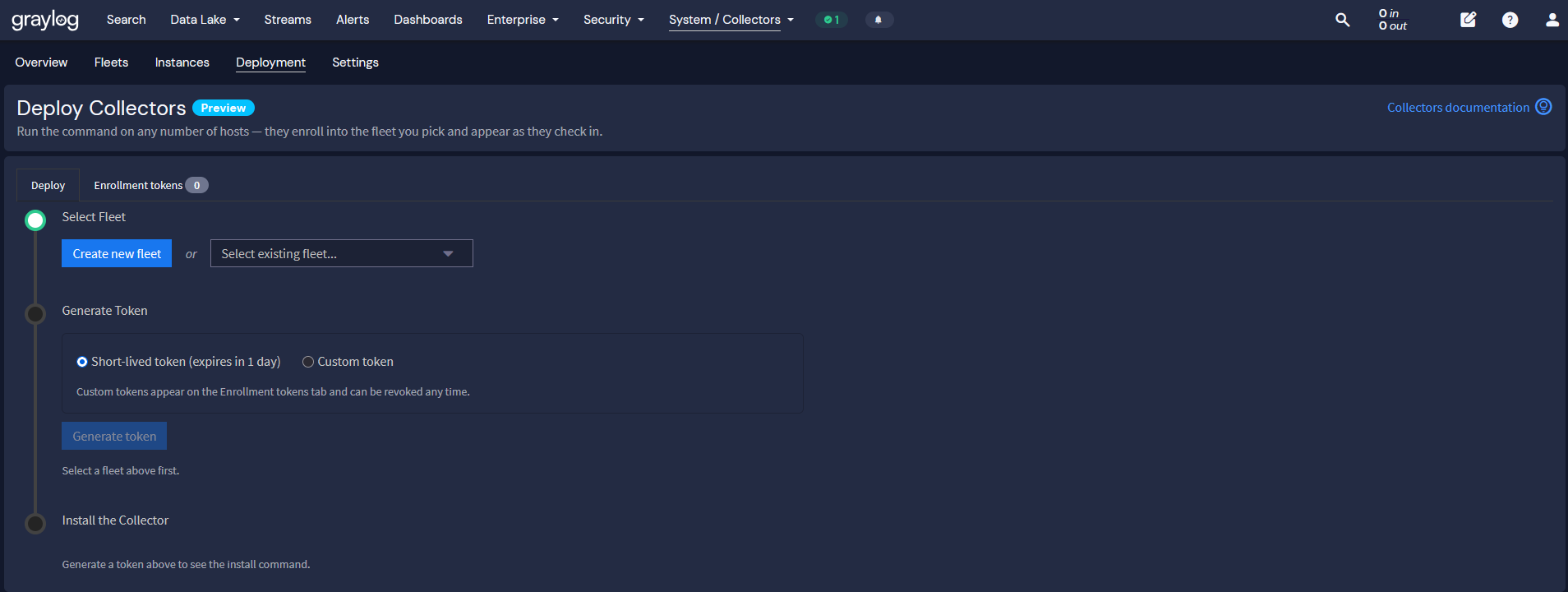
Step 2: Generate an Enrollment Token
The token decides which fleet a collector joins. Every collector that enrolls with the same token joins the same fleet, so one token can cover an entire rollout.
Go to System > Collectors and select the Deployment tab:
- Select a fleet. Choose one from Select existing fleet, or select Create new fleet, give it a unique name and optional description, and select Create fleet.
- Select a token type:
- Short-lived token expires in one day. Use it for interactive installs, generating a fresh token for each rollout.
- Custom token takes a name and an expiry of 24 hours, 7 days, 30 days, or never. Use it for staged rollouts or configuration management.
- Select Generate token.
Graylog shows the token value only once. If you lose it, generate a new one. Treat tokens as credentials: generate a new one per rollout where you can, keep long-lived tokens in a secrets store or automation variable rather than a plain file, and remove them from hosts after enrollment.
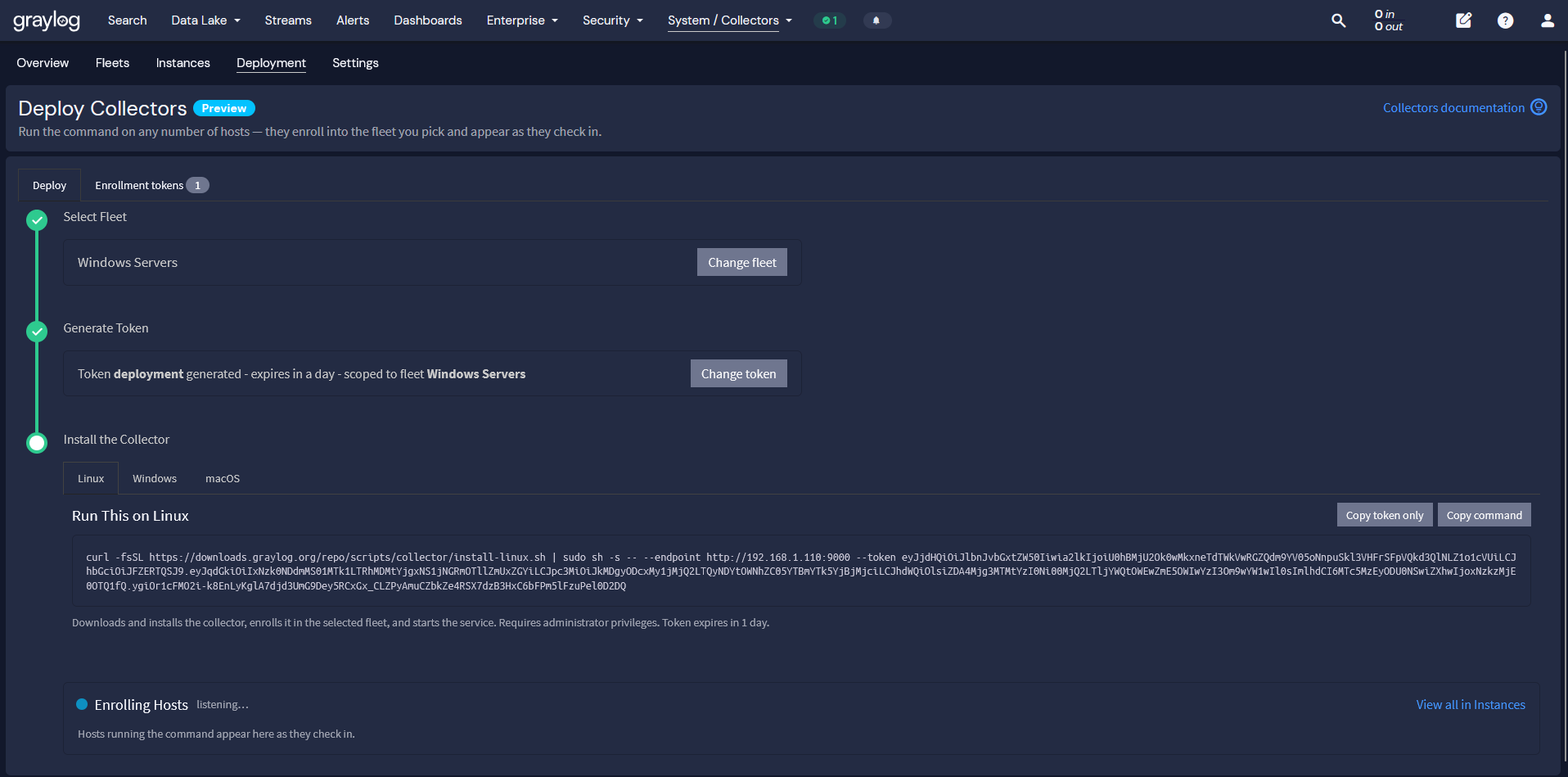
Step 3: Run the Install Command
After you generate a token, the Install the Collector step shows a ready-to-run command for each platform. It downloads the collector, installs it, enrolls it in the fleet, and starts the service.
- Select the tab for the host’s platform: Linux, Windows, or macOS.
- Select Copy command.
- Run it on the host. On Linux and macOS, use a terminal as a user with sudo. On Windows, use an elevated PowerShell session; the command uses PowerShell syntax and fails in Command Prompt.
The Enrolling Hosts panel lists each host as it checks in. Run the same command on as many hosts as you need.
Alternative: Install from a Package
Use a package install when you deploy through configuration management, when endpoint protection blocks the generated command, or when a host cannot download and run a script. Select Copy token only to grab the token without the command, then download the package for your platform from the Graylog Collector releases page. Replace <version> below with the release you are installing. Find the installers here: https://github.com/Graylog2/collector/releases
Linux
Install the package. On Debian and Ubuntu:
sudo dpkg -i graylog-collector_<version>-1_amd64.deb
On RHEL and derivatives:
sudo rpm -ivh graylog-collector-<version>-1.x86_64.rpm
The package installs a systemd unit but does not start it. Create the enrollment file with restricted permissions:
sudo cp /etc/graylog/collector/enrollment.env.example /etc/graylog/collector/enrollment.env
sudo chmod 0600 /etc/graylog/collector/enrollment.env
Edit /etc/graylog/collector/enrollment.env, uncomment both values, and set them. The endpoint is the URL you use to reach Graylog in a browser:
GLC_SERVER__AUTH__ENROLLMENT_ENDPOINT=https://graylog.example.com:9000
GLC_SERVER__AUTH__ENROLLMENT_TOKEN=eyJhb…
Then enable and start the service:
sudo systemctl enable –now graylog-collector
Tip: To keep the token out of the file entirely, run graylog-collector enroll –endpoint <url> –token <token> before starting the service. Rerunning it on an enrolled host just reports the existing enrollment, and failures return a non-zero exit code, so it is safe in configuration management runs.
Windows
The MSI installs a graylog-collector service running as LocalSystem, starts it, and sets it to start at boot.
For an interactive install, which prompts for the endpoint and token:
msiexec /i graylog-collector-<version>.msi
For an unattended install:
msiexec /i graylog-collector-<version>.msi /qn ^
ENROLLENDPOINT=”https://graylog.example.com:9000″ ^
ENROLLTOKEN=”<token>”
If either value is missing in an unattended install, the service starts but then stops because it cannot enroll. The installer stores both values in the registry, so upgrades keep the existing enrollment.
macOS
One universal package covers Intel and Apple silicon and installs a launchd daemon labelled org.graylog.collector:
sudo installer -pkg graylog-collector-<version>-darwin-universal.pkg -target /
Create /Library/Application Support/Graylog/Collector/supervisor.yaml:
server:
auth:
enrollment_endpoint: https://graylog.example.com:9000
enrollment_token: eyJhb…nbsp;
Lock down the file and restart the daemon:
sudo chown root:wheel “/Library/Application Support/Graylog/Collector/supervisor.yaml”
sudo chmod 0600 “/Library/Application Support/Graylog/Collector/supervisor.yaml”
Restart the Daemon
sudo launchctl kickstart -k system/org.graylog.collector
The daemon will start, fail to enroll, and restart until the configuration file exists. That is expected. The graylog-collector enroll command from the Linux tip works here too.
A Note on Self-Signed Certificates
For lab or evaluation servers with self-signed certificates, you can skip certificate verification: GLC_SERVER__AUTH__INSECURE_TLS=true on Linux, ENROLLINSECURETLS=true on Windows, or insecure_tls: true under auth on macOS. This makes the collector accept any certificate the server presents, so install a trusted certificate before running collectors in production.
Verify the Installation
While the Deployment tab is open, select View setup on a host’s row in the Enrolling Hosts panel to follow it through four stages: enrollment, connection, configuration, and first messages. The first three complete within seconds. First Messages stays at “Listening…” until log data reaches Graylog, and it is the only stage that confirms the data channel is working.
If First Messages never resolves, check your fleet. A new fleet has no sources, so a collector can enroll, connect, and receive its configuration while collecting nothing. Select Configure sources in the setup panel to add one, or Open in search to view the messages the collector has sent.
To check a collector later, go to System > Collectors and select the Instances tab. It should appear with its hostname, operating system, version, and a status of Online.
To check the service on the host itself:
| Platform | Command |
| Linux | sudo systemctl status graylog-collector |
| Windows | Get-Service graylog-collector |
| macOS | sudo launchctl print system/org.graylog.collector |
Troubleshooting Common Issues
The install stops on an untrusted certificate. If the host does not trust the Graylog server’s certificate, the generated command stops before installing anything. The right fix is to install the CA certificate in the host’s trust store. For test or evaluation setups, you can rerun with –skip-tls-verify (Linux and macOS) or -SkipTlsVerify (Windows), but do not use this in production.
The Windows command fails with “& was unexpected at this time.” You ran a PowerShell command in Command Prompt. Open PowerShell as an administrator and run it there.
Windows Security blocks the install. Endpoint protection on managed hosts often blocks scripts that download and launch installers. Use the .msi package instead, interactively or through your software distribution tooling.
The collector does not appear in Graylog. Confirm the service is running, then check the collector log on the host, where enrollment failures are recorded:
| Platform | Collector log |
| Linux | /var/lib/graylog-collector/logs/supervisor.log |
| Windows | C:\ProgramData\Graylog\Collector\logs\supervisor.log |
| macOS | /Library/Application Support/Graylog/Collector/logs/supervisor.log |
The usual culprits:
- Wrong enrollment endpoint. Use the URL you reach Graylog with in a browser, copied from the Deploy sub-tab. Pointing it at the REST API path (…/api) fails.
- Expired or deleted token. Check the Enrollment tokens sub-tab and generate a new token if needed.
- Untrusted server certificate. Install the CA certificate in the host’s trust store.
- Enrollment settings not applied. On Linux, confirm the values in enrollment.env are uncommented and that you restarted the service after editing.
- Server unreachable. Confirm the host can reach the Graylog server URL over HTTPS.
To test enrollment on its own without starting the collector, run this on the host. It reports the reason if enrollment fails:
graylog-collector enroll –endpoint https://graylog.example.com:9000 –token <token>
Try It and Tell Us What You Think
Graylog Collector changes how you get logs into Graylog. Install once, enroll into a fleet, and manage what every host collects from a single interface, with configuration changes pushed live and no restarts. Collector data flows through the same Illuminate content, pipelines, and streams you already rely on.
Because Graylog Collector is a preview feature in 7.2, your feedback directly shapes where it goes next. Stand it up in your lab, point a fleet at a few hosts, and email your experience to [email protected].
For full details, see the latest Graylog Collector documentation.