

Every security team keeps a short list of things it needs to see the moment they show up: a suspicious IP, a compromised account, a known-bad file hash, a port that should never be open. Graylog has always let you track those values, and the improved Watchlists feature in Graylog Security makes them a first-class part of the platform. You get seven built-in watchlists, per-entry expiry, one-click add and remove from search results, and a new Watchlist parameter type that drops your watched values straight into searches, dashboards, and event definitions.
What Are Watchlists?
A watchlist is a managed list of values that Graylog checks your log messages against. When a value in a checked field matches an entry, Graylog flags it in the message, so analysts see at a glance that a source IP, user, or hash is one the team has already marked as important.
Watchlists are not limited to flagging. You can reference them in searches, dashboards, event definitions, and pipeline rules, which means the same list that highlights a value during an investigation can also drive detection logic and reporting. Because each entry can carry its own time to live (TTL), short-lived indicators expire on their own instead of quietly piling up.
What’s New in Watchlists
With Graylog 7.2, watchlists move off the legacy watchlist lookup table and onto a dedicated, typed model. Each watchlist validates the values it accepts, every entry can expire on its own schedule, and a new v2 REST API gives automation a clean way to keep lists current.
Included with Watchlists:
- Seven built-in watchlists: IP, User, File Hash, Port, Domain, GeoLocation, and File, each with its own accepted value formats and matching rules.
- Per-entry TTL: a default TTL per watchlist, with the option to override it for any batch of entries or set entries to never expire.
- Bulk entry management: add many values at once, one per line or comma-separated, with clear reporting on anything rejected.
- In-context actions: add or remove a value directly from search results or a message’s details.
- Watchlist query parameters: reference a watchlist in searches, dashboards, and event definitions without hardcoding values.
- Pipeline functions: watchlist_contains(), watchlist_add(), and watchlist_remove() for processing-time logic.
- v2 REST API: list, add, remove, set TTL, and bulk-check values against one or all watchlists of a type.
Requirements:
- Graylog Security with a valid license
- watchlist:read permission to view watchlists, watchlist:edit to add entries or change the default TTL, and watchlist:delete to remove entries
Managing Watchlists in Graylog
Step 1: View Your Watchlists
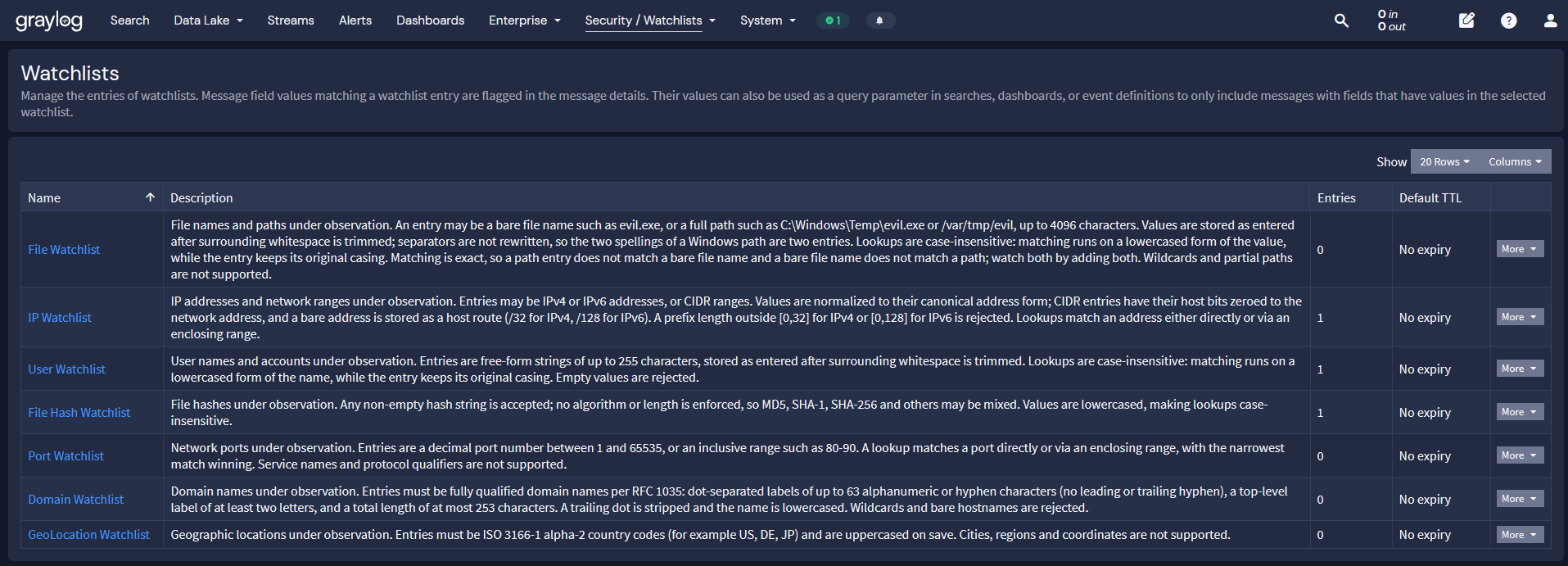
Navigate to Security > Watchlists. The overview lists each watchlist type, its description, the current number of entries, and its default TTL. Click a watchlist name to open its detail page, where entries appear in a table with Value and Expires columns. Entries that never expire show No expiry. Use the Search entries field to filter, or click a column heading to sort by value or expiry.
Step 2: Set a Default TTL
The default TTL controls how long new entries stay on a watchlist when you add them without their own TTL.
- In the row of the watchlist you want to change, open the More dropdown and select Set default TTL.
- Enter the TTL. Enter 0 if new entries should never expire by default.
- Click Save.
Changing the default TTL does not change the expiry of entries already on the list.
Step 3: Add Entries
- Click the name of the watchlist, then click Add entries.
- In the Values field, enter values one per line or separated by commas.
- (Optional) Change the TTL for this batch. The field is prefilled with the watchlist’s default; enter 0 to make these entries permanent.
- Click Add entries.
Graylog reports how many entries were added and lists any rejected values with the reason for each. Valid values are still added even if others in the batch are rejected. Each watchlist type accepts only specific formats: for example, the Domain watchlist rejects wildcards and the GeoLocation watchlist accepts only two-letter country codes.
Step 4: Remove Entries
From the watchlist detail page, remove a single entry through the More dropdown in its row and select Delete, or select several checkboxes and choose Bulk actions > Delete. Confirm the deletion.
Step 5: Act Directly From Search Results
While reviewing search results, click a field value in a message and select Add to <Watchlist> or Remove from <Watchlist>. This works for the fields Graylog checks against watchlists, such as source_ip, user_name, and destination_port. The actions you see depend on your permissions and on whether the value is already listed.
You can also remove a value from the Found on watchlist section of a message’s details. If an IP address matched through a CIDR range, removing it there removes the entire range, and Graylog asks you to confirm first. Array field values cannot be added or removed from search results; use the watchlist detail page instead.
Using a Watchlist as a Query Parameter
The new Watchlist parameter type inserts a watchlist’s current entries into a query at run time. Your searches, dashboards, and alerts stay in sync with the list automatically, with no query edits when entries change.
In a Search or Dashboard
- Open the parameter declaration and add a parameter with Watchlist as its type.
- Name the parameter, select the watchlist it uses, and save it.
- Reference it on the right-hand side of a field query, in the format field:parametername.
For example, to find logins by users on the User watchlist:
user_name:watchedusers AND action:login
To exclude watched values instead, negate the field query, for example NOT source_ip:trustedips.
In an Event Definition
Navigate to Alerts > Event Definitions and create or edit a definition. In the Filter & Aggregation step, add a query parameter, select Watchlist as its type, choose the watchlist, and reference it in the search query using the same field:parametername format.
Upgrading? Lookup table parameters that referenced the legacy watchlist lookup table with the ip, user, or hash key are converted to Watchlist parameters automatically. Pipeline rules that read the legacy table with a lookup_* function, however, should be updated to use watchlist_contains(), watchlist_add(), or watchlist_remove().
Automating Watchlists With the REST API
For teams feeding watchlists from threat intel, ticketing, or SOAR workflows, the v2 REST API covers the full lifecycle. All endpoints require authentication and a Graylog Security license, under the base path /api/plugins/org.graylog.plugins.watchlist/v2/watchlists.
| Method | Path | Permission | Description |
| GET | / | watchlist:read | List all watchlists |
| GET | /{id} | watchlist:read | Get one watchlist |
| PUT | /{id}/ttl/{seconds} | watchlist:edit | Set the default TTL (0 = never expire) |
| GET | /{id}/entries | watchlist:read | List all entries without pagination |
| GET | /{id}/entries/paginated | watchlist:read | List entries with pagination, sorting, and search |
| POST | /{id}/entries | watchlist:edit | Add entries |
| POST | /{id}/entries/remove | watchlist:delete | Remove entries by value |
| POST | /bulk-check | watchlist:read | Check field values against one watchlist or all watchlists of a type |
For example, to add two entries with a one-hour TTL:
curl -u <username>:<password> -X POST -H ‘Content-Type: application/json’ \
‘https://<graylog-host>:9000/api/plugins/org.graylog.plugins.watchlist/v2/watchlists/<watchlist-id>/entries’ \
-d ‘{“values”: [“10.20.30.40”, “192.168.1.0/24”], “ttl_seconds”: 3600}’
The response reports the number added and any rejected values:
{ “added_count”: 2, “errors”: {} }
Removals match by normalized form, so 10.20.30.40 and 010.020.030.040 remove the same entry. Removing an IP that is covered only by a CIDR range does not remove the range through the API; remove the range itself to clear the match.
The earlier watchlist endpoints (…/watchlist/add, …/watchlist/remove, and …/watchlist/checkFieldValues) still work and write to the new watchlists, but they are deprecated and will be removed in the next major release. Move integrations to the v2 endpoints now.
The Built-In Watchlists
Graylog Security ships with seven watchlists, each validating its own value format so bad entries are caught at the door:
| Watchlist | What It Tracks | Matching Notes |
| IP | IP addresses and CIDR ranges | Example checked field: source_ip. A CIDR entry matches every address in its range; Graylog nodes cache match results briefly, so range changes can take up to a minute to apply |
| User | User names | Case-insensitive, but must match the full field value, including any domain prefix such as CORP\jsmith. Example checked field: user_name |
| File Hash | File hashes | Matched against hash values in checked fields |
| Port | Network ports | Example checked field: destination_port |
| Domain | Domain names | Wildcards are rejected |
| GeoLocation | Countries | Accepts only two-letter country codes |
| File | Files | See the Watchlists documentation for accepted values |
For the full list of checked fields and accepted formats per type, see the Watchlists documentation.
Why Use Watchlists?
Watchlists turn tribal knowledge into shared, enforceable context. The values your team cares about stop living in a spreadsheet or someone’s notes and start working across detection, investigation, and reporting.
Security Monitoring
- Flag known-bad IPs, domains, and file hashes the moment they appear in log data
- Alert on logins by users placed on the User watchlist during an active investigation
- Watch for traffic to ports that should never be open in your environment
- Exclude trusted infrastructure from noisy detections with a negated watchlist parameter
Threat Hunting
- Load indicators from a threat report with a short TTL so they age out automatically
- Use a single watchlist parameter across saved searches instead of maintaining hardcoded value lists
- Track activity from specific countries with the GeoLocation watchlist
- Bulk-check field values against every watchlist of a type through the API
Incident Response
- Add a suspicious value to a watchlist straight from search results while you triage
- Keep compromised accounts and hosts visibly flagged in every message until the incident closes
- Let event definitions pick up newly watched values without editing the alert
- Remove entries cleanly once a threat is contained, so stale flags do not mislead the next analyst
Compliance & Audit
- Maintain a governed list of monitored entities with role-based read, edit, and delete permissions
- Use expiry dates to show when monitoring of a value started and when it is set to end
- Build dashboards that report on watched activity for audit and review
Graylog Security
Attackers target access, not org charts, so the people with sensitive privileges are often your most attacked. This companion to the VAP eBook is a great start for configuring specific people on a Graylog watchlist and build a risk-scored VAP dashboard around them in Graylog Security, with no extra analyst or add-on required.
With Graylog Security, watchlists become a living layer of context across your entire environment. Seven typed lists, per-entry expiry, in-context actions, and query parameters mean the values your analysts care about show up everywhere they need to, from the first search to the final alert. For setup details and the full reference, please follow the documentation.